
tickPad
Notes and to-dos, without having to pick one
Write the thought down first. Tick it when you want to track it, or leave it as a note if it was only ever a thought — one note, two roles, no decision up front. Desktop and phone sync over your own Wi‑Fi, and your data stays on your devices. No account, no cloud.
Why tickPad
To-do apps are too much, note apps too little — the middle was empty
A pure to-do app wants a due date, a project and tags before you've finished the thought, so jotting something down feels like filing paperwork. A pure notes app lets you tick a box, but a tick is all it is — no progress, no reminder, so the things you actually meant to follow up slip away. tickPad is one note: write first, and when something needs tracking, add a checklist inside it. No switching apps, no deciding in advance whether this is a note or a task.
Desktop notes
Unfinished things stick to your screen — hard to ignore
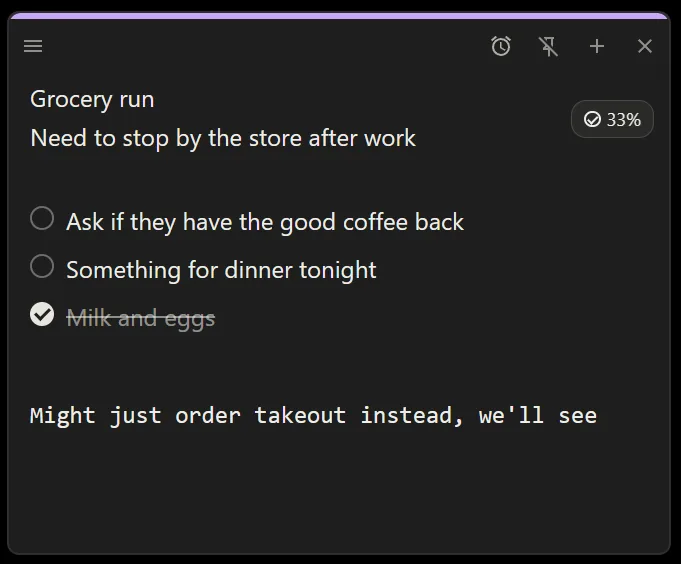
Pin a note and it floats above every other window, like paper stuck to the monitor: no switching, it's there when you look up, and you can have several floating at once. Give it a due time and, when that time comes, the little alarm on the note starts swinging — not a notification that vanishes, but something that stays in front of you until you deal with it.
Routines
The things you do every day put themselves back
When you set an alarm you choose “once” or a rhythm — daily, weekly (pick several days, say Mon / Wed / Fri), monthly (the 1st and the 15th), or yearly. A note with a checklist resets itself once the time has come and every box is ticked: the boxes clear and the alarm moves to the next slot, so tomorrow you open a clean sheet. A note without a checklist is simply a repeating reminder that rolls forward on its own. Finish early and it waits for the due time before resetting — a few extra taps can't push it into next month.
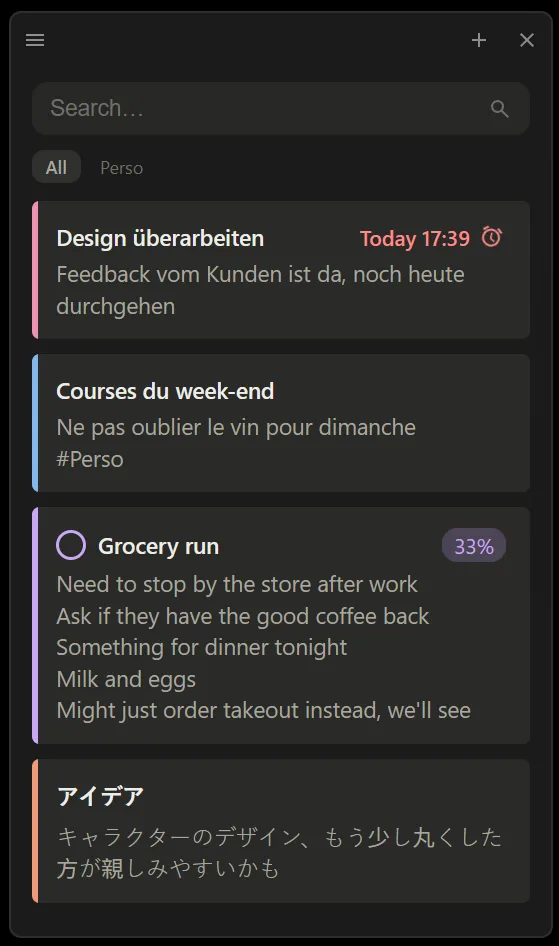
Type #tag anywhere in a note and it becomes a category in the list. Select text to
turn it into a link that opens in your browser. Paste from the web and the formatting is dropped —
how a note looks is decided inside the note.
Local sync
Pick one computer as the hub; every other device only talks to your Wi‑Fi
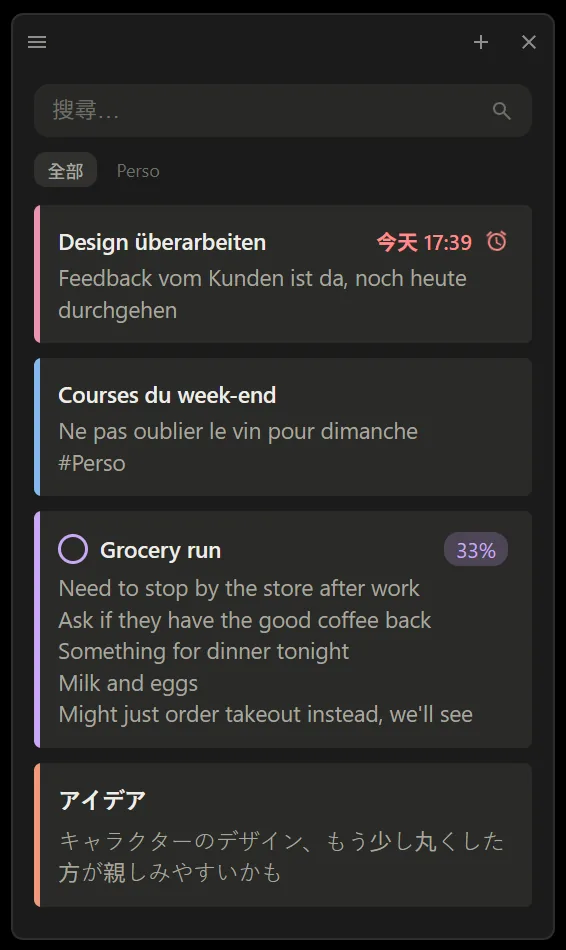
The hub runs a small sync service on your local network. Phones — and other computers, say the Windows box at work and the Mac at home — pair once and join the same way; on first connection a computer pushes all of its notes to the hub and merges. Edits sync quickly while the app is open and catch up periodically in the background. There is no cloud account — data only ever travels between your own devices.
Home-screen widget
What's still open, one glance away
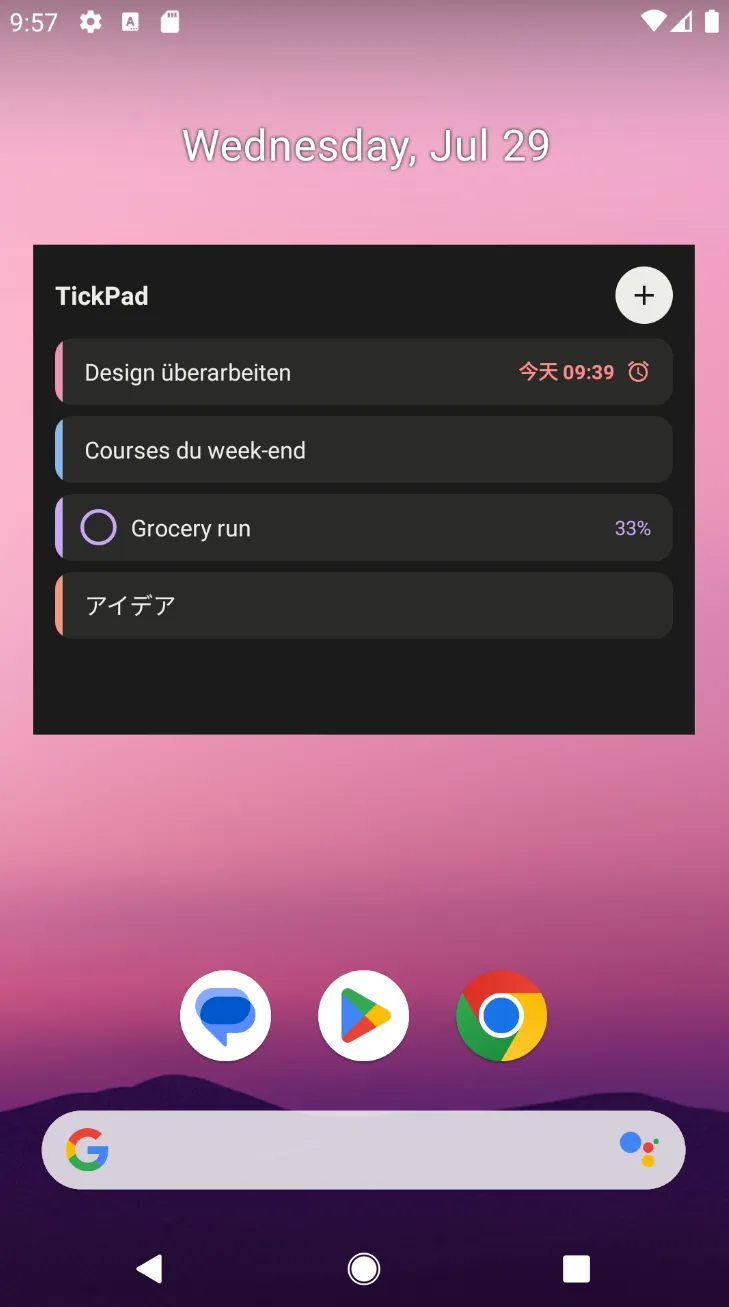
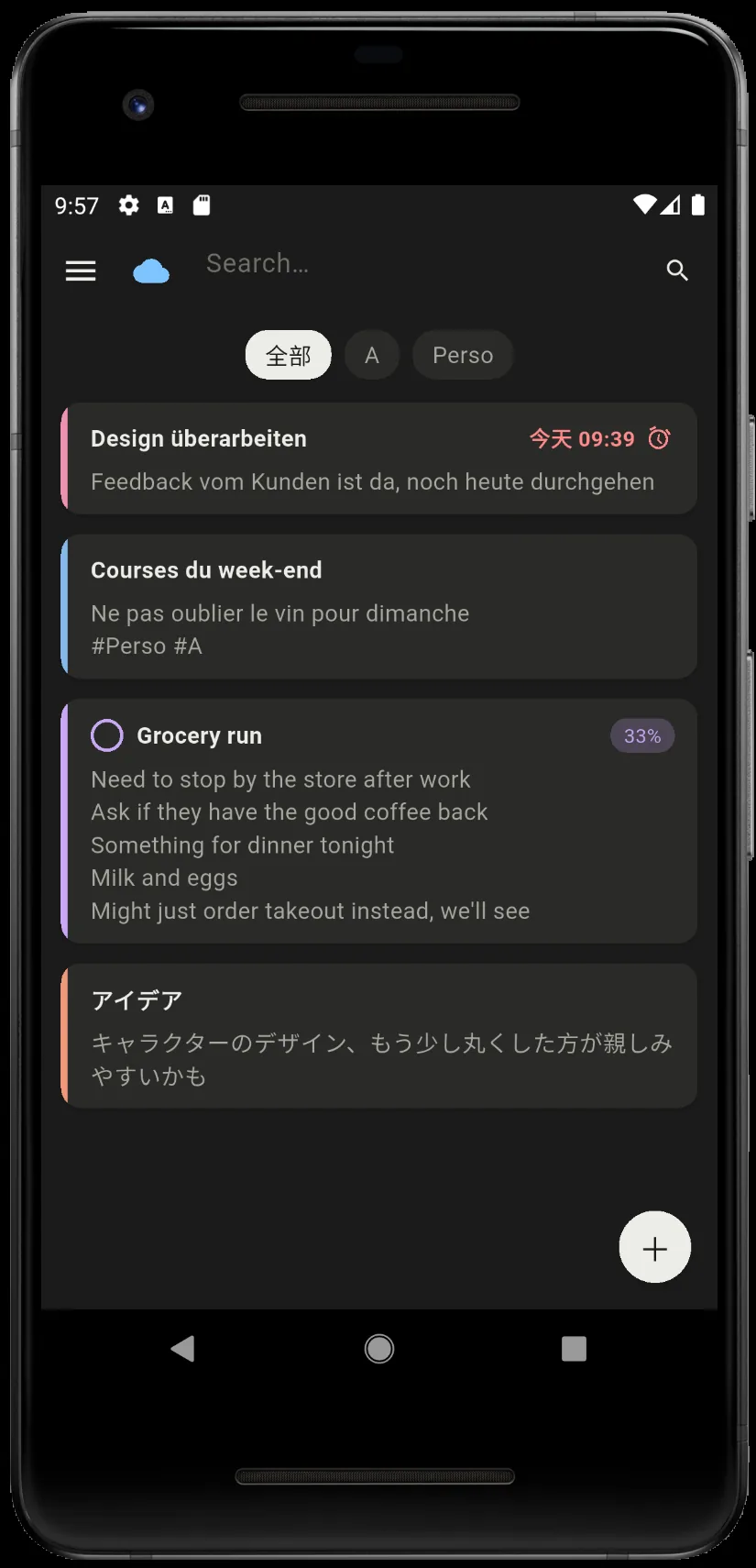
The phone widget shows your open notes and to-do progress, on iOS and Android. Change something on the desktop and, after a background sync, the widget updates too — no need to open the app just to check.
Global shortcut
Stop messaging yourself to remember things
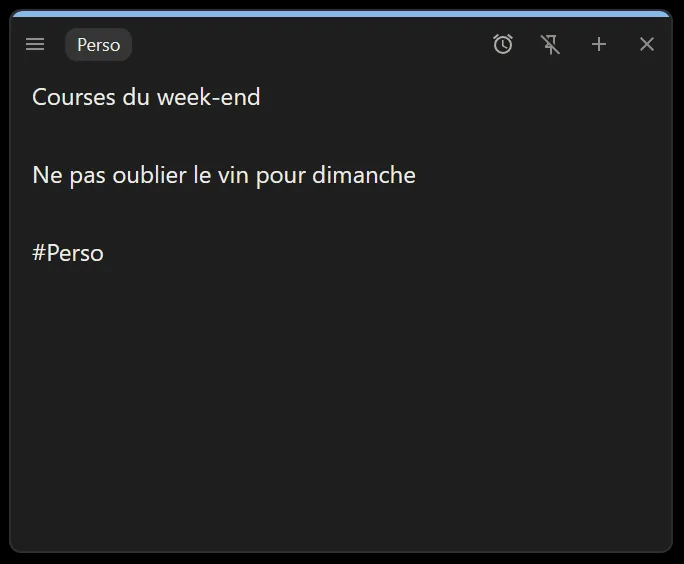
Press the shortcut on your computer and, whatever you're in, a new note opens in the middle of the screen ready for typing — faster than switching to a chat app and finding the “message yourself” thread. Close the window and it's saved; close it empty and nothing is left behind. The keys are yours to change in Settings.
Pricing
Free to use; pay once to sync your phone with your computer
The desktop app is free on both Windows and macOS — pinned notes, repeating routines, global quick capture and computer-to-computer sync are all included, with no trial counting down. The phone app is a free download too, with a single small banner at the bottom of the notes list. It doesn't track you.
The only paid part is tickPad Pro: a one-time $5.99, bought inside the phone app. No subscription, no renewal, and every future version is a free upgrade.
- Phone-to-computer sync over your own Wi‑Fi, with nothing passing through a third party
- Removes the banner at the bottom of the phone's notes list
- Desktop MCP: let Claude and other AI assistants read and write your notes
- Every future version free — no second charge, ever
Get started
Two steps and you're writing
Open the desktop app, then let the phone find that computer on the same Wi‑Fi and approve the pairing. From then on notes, checklists and due times travel between your devices.
- Install the desktop app Run tickPad on your computer — it is the hub by default, so the sync service is up. Set your quick-capture shortcut while you're there.
- Pair your other devices Open the phone app (iOS / Android) on the same Wi‑Fi and approve it on the hub. A second computer joins from Settings → Devices → "Connect to a hub".
- Pin a note, add the widget Pin what you're tracking to the desktop, and put tickPad on the phone's home screen.
The desktop installers live on GitHub Releases — download and use them straight away, no payment first. The macOS build is notarized by Apple; the Windows build isn't code-signed yet, so SmartScreen may ask once. The Android app is in closed testing on Google Play; this page will carry the link once it ships.